Guide
Through source code modifications, you can change Purse's behavior and appearance. Here are a few examples of what you can do with Purse.
Changing Equip Color
You can change the slot's equip color, which is blue, by modifying the SLOT_EQUIP_COLOR constant in its source.
The following code sample changes the equip color to red.
44 45 46 47 48 49 | |
- Changed from blue
Color3.new(90 / 255, 142 / 255, 233 / 255)to redColor3.new(233 / 255, 90 / 255, 90 / 255)
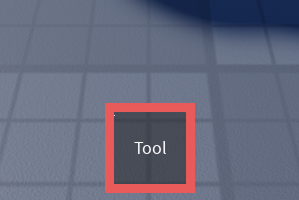
Hotbar with a red equip outline
Increasing Hotbar Slots and Inventory Rows
Purse shows a set number of hotbar slots and inventory rows based on the device.
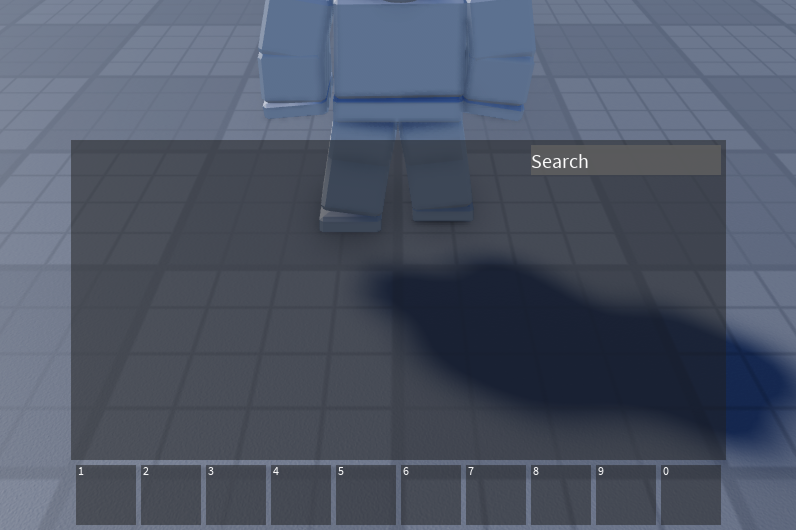
Computer, console, and VR have 10 hotbar slots and 4 inventory rows
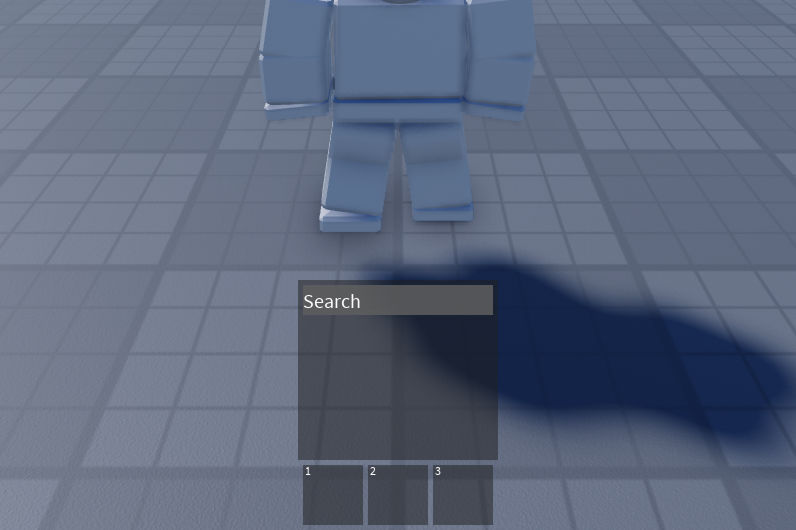
Phone and tablet devices have 3 hotbar slots and 2 inventory rows
It's possible to increase the number of hotbar slots and inventory rows shown by changing the constants in the source code.
Note
Formerly VR devices used different constants for hotbar slots and inventory rows but now use the same as computer and console devices.
HOTBAR_SLOTS_VR and INVENTORY_ROWS_VR are no longer used but are still included in the code. VR devices now use INVENTORY_ROWS_FULL and HOTBAR_SLOTS_FULL.
62 63 64 65 66 67 68 69 70 71 72 | |
Constants suffixed with _FULL are for computer, console, and VR devices while constants suffixed with _MINI are for phone and tablet devices.
The following code sample changes phone and tablet devices to have 5 hotbar slots.
62 63 64 65 66 | |
- Changed from
3hotbar slots to5hotbar slots
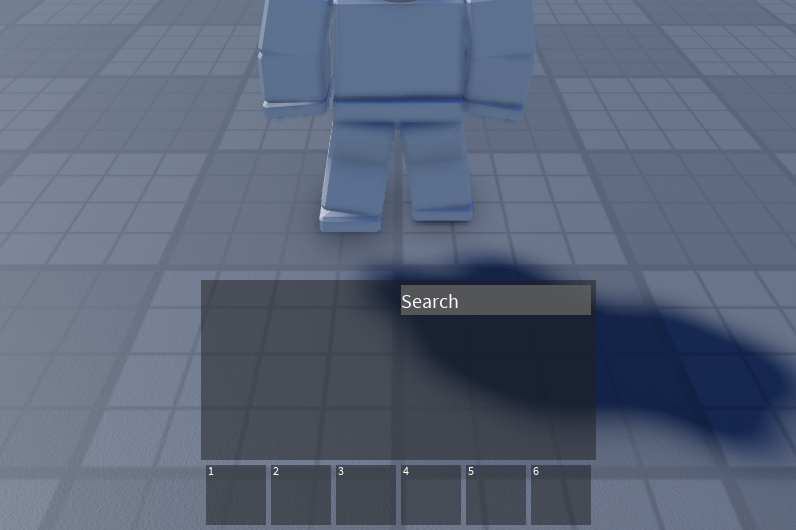
Increased hotbar slots on phone and tablet devices
Removing Topbar Icon
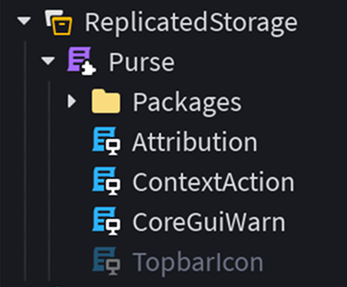
The topbar icon is decoupled from Purse's functionality, so you can remove it by disabling the TopbarIcon script. In addition, a ContextAction script is included to bind opening and closing the inventory to a keycode (set to backquote ` by default).
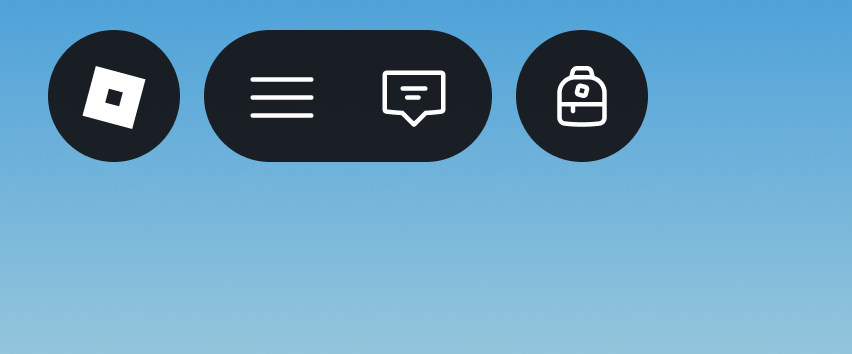
Topbar icon enabled

Topbar icon disabled
Your explorer window should look similar to the following when you disable the TopbarIcon script and enable the ContextAction script.
Warning
If you do not enable the ContextAction script, players will not be able to open the backpack since the topbar icon which handles binding is disabled.
Changing Inventory Key
The default key to open the inventory is the backquote ` key, but you can change this by modifying the bindToggleKey argument in the TopbarIcon script.
The following code sample changes the inventory toggle key to the I key.
| TopbarIcon | |
|---|---|
6 7 8 9 10 11 12 13 14 15 16 17 18 19 20 21 22 23 24 25 | |
- Changed from backquote ` key
Enum.KeyCode.Backquoteto I keyEnum.KeyCode.I
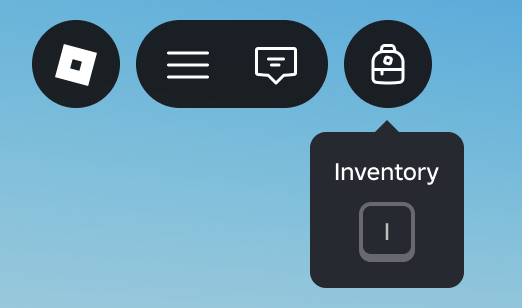
Topbar icon with inventory toggle key changed to I
It is also possible to bind the inventory toggle when using the ContextAction script. The following code sample binds the inventory toggle to the I key.
| ContextAction | |
|---|---|
16 | |
- Changed from backquote ` key
Enum.KeyCode.Backquoteto I keyEnum.KeyCode.I
If you don't want any key to be bound to toggling the inventory, you delete the line that binds the inventory toggle for either the TopbarIcon or ContextAction script which you use.